How to use Scrapling is easiest to learn by building something real. In this tutorial you will install the framework, fetch a page, extract structured data, handle a JavaScript-rendered version of the same site and finally turn the script into a spider that follows pagination. Every example targets quotes.toscrape.com, a public practice site built for scraping exercises.
Setting Up Your Environment
Scrapling requires Python 3.10 or newer. A virtual environment keeps the project tidy and makes it easy to start over if something goes wrong.
python -m venv .venv
source .venv/bin/activate
pip install "scrapling[fetchers]"
scrapling install
The fetchers extra provides the HTTP and browser fetchers, and scrapling install downloads the browser dependencies. Full details on extras are in the Scrapling download article.
Fetching Your First Page
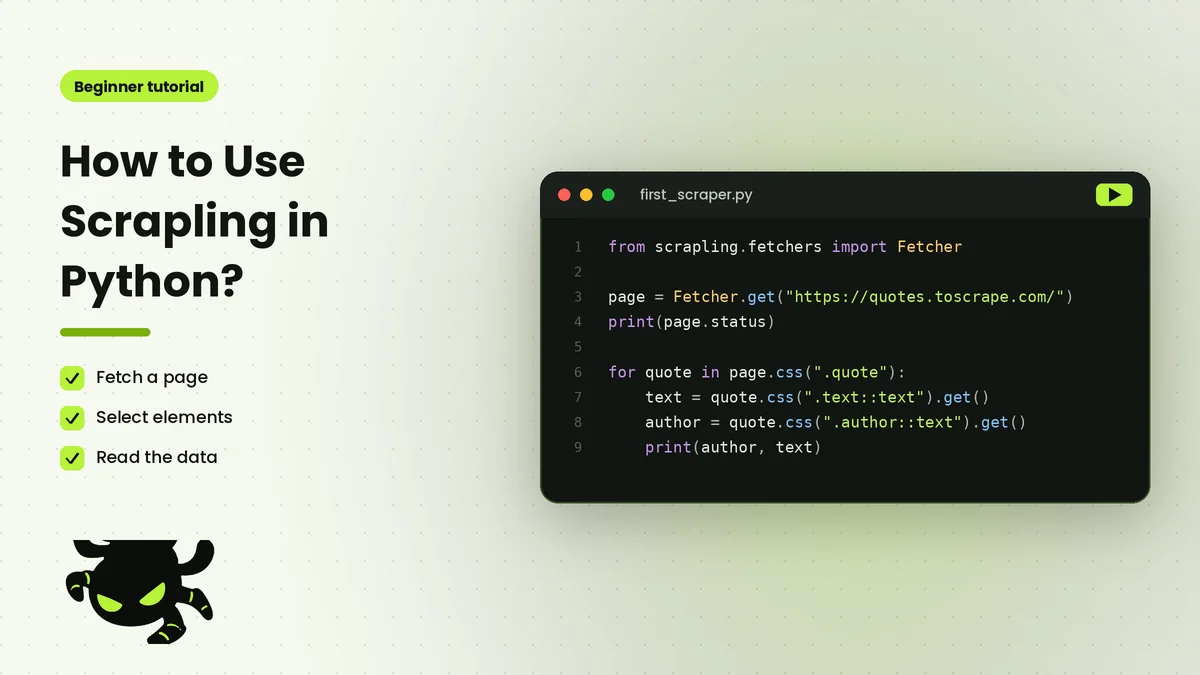
Fetcher handles plain HTTP requests and is the right starting point for pages that do not depend on JavaScript. Its responses can be queried directly with selectors.
from scrapling.fetchers import Fetcher

page = Fetcher.get("https://quotes.toscrape.com/")
print(page.status)
A status of 200 means the request succeeded. According to the official overview, Fetcher can impersonate a browser's TLS fingerprint, which helps requests look closer to ordinary browser traffic.
Selecting Elements with CSS and XPath
Scrapling supports CSS selectors and XPath, including Scrapy-style pseudo-elements. ::text returns text content and ::attr(name) returns an attribute value.
quotes = page.css(".quote .text::text").getall()
authors = page.css(".quote .author::text").getall()
links = page.css(".quote a::attr(href)").getall()
first_tag = page.xpath('//a[@class="tag"]/text()').get()
getall() returns every match as a list, while get() returns the first match. Pick whichever syntax you find clearer, because both work on the same page object.
Working Element by Element
Looping over containers keeps related fields together. This is usually more reliable than collecting separate lists and zipping them afterwards.
results = []
for quote in page.css(".quote"):
    results.append({
        "text": quote.css(".text::text").get(),
        "author": quote.css(".author::text").get(),
        "tags": quote.css(".tag::text").getall(),
    })
print(len(results))
Handling JavaScript-Rendered Pages
Some pages build their content in the browser, so a plain HTTP request returns little useful HTML. The practice site offers such a version at /js/, which makes a good test.
from scrapling.fetchers import StealthyFetcher

page = StealthyFetcher.fetch(
    "https://quotes.toscrape.com/js/",
    headless=True,
    network_idle=True,
)
print(page.css(".quote .text::text").getall()[:3])
StealthyFetcher launches a browser, waits for activity to settle and then returns the rendered page. The same selector methods work on the result, so your extraction code does not change.
Reusing Sessions for Several Requests
Opening a new browser for every page is slow. Sessions keep a browser or HTTP connection alive across requests, which speeds up multi-page work considerably.
from scrapling.fetchers import StealthySession

with StealthySession(headless=True) as session:
    for n in (1, 2, 3):
        page = session.fetch(f"https://quotes.toscrape.com/js/page/{n}/")
        print(n, len(page.css(".quote")))
For pure HTTP work, FetcherSession provides the same pattern without a browser.
Making Selectors Survive Site Changes
Adaptive tracking stores a fingerprint of the elements you select. If the site later changes its markup, the same selector with adaptive=True can relocate the closest matching elements.
Fetcher.configure(adaptive=True)
page = Fetcher.get("https://quotes.toscrape.com/")
quotes = page.css(".quote", auto_save=True)
# later, after a redesign
quotes = page.css(".quote", adaptive=True)
The adaptive scraping article explains how fingerprints work and where the feature has limits.
Scaling Up with a Spider
When a job spans many pages, the spider framework manages requests, concurrency and results for you. A spider defines its start URLs and a parse method that yields items.
from scrapling.spiders import Spider, Response

class QuotesSpider(Spider):
    name = "quotes"
    start_urls = ["https://quotes.toscrape.com"]

    async def parse(self, response: Response):
        for quote in response.css("div.quote"):
            yield {
                "text": quote.css("span.text::text").get(""),
                "author": quote.css("small.author::text").get(""),
            }

result = QuotesSpider().start()
result.items.to_json("quotes.json")
start() handles the asynchronous machinery internally. Results can also be exported with to_jsonl(), to_csv() or to_xml(), and settings such as concurrent_requests control how many requests run at once.
Choosing the Right Tool for Each Job
Each part of Scrapling fits a particular situation. This summary helps you decide where to start.
| Situation | Recommended class |
|---|---|
| Static HTML page | Fetcher |
| Many static pages on one site | FetcherSession |
| JavaScript-rendered page | StealthyFetcher |
| Many dynamic pages | StealthySession |
| Whole-site crawl with exports | Spider |
| HTML you already have | Selector |
Scraping Responsibly
Good habits protect both you and the sites you visit. Before scaling any scraper, review these points.
- Read the website's terms of service and robots.txt
- Keep request rates modest and avoid peak hours for heavy jobs
- Collect only the data you genuinely need
- Avoid personal data unless you have a lawful basis
- Identify problems early by testing on practice sites first
Saving Your Results
Extracted data is only useful once it is stored somewhere. For a simple script, the standard library is enough: write the list of dictionaries to JSON or CSV and open the file in your editor or spreadsheet application.
import json

with open("quotes.json", "w", encoding="utf-8") as f:
    json.dump(results, f, ensure_ascii=False, indent=2)
For spiders, the built-in export helpers handle this for you. Choosing JSON Lines with to_jsonl() is helpful for large crawls, because each item sits on its own line and the file can be processed in a stream.
Exploring Pages Before Writing Code
Writing selectors blind is slow. With the shell extra installed, scrapling shell opens an interactive session where you can fetch a page and try selectors until they return the right elements.
The extract command is another shortcut. Running scrapling extract get with a URL and an output file saves the page as text, Markdown or HTML, and the --css-selector option limits the output to the elements you care about.
pip install "scrapling[shell]"
scrapling extract get "https://quotes.toscrape.com/" quotes.md --css-selector ".quote"
Debugging Empty Results
An empty list usually means the selector or the fetching method does not match the page. Checking a few things in order finds the cause quickly.
- Print
page.statusto confirm the request succeeded - Search the returned HTML for the text you expect to extract
- Switch to
StealthyFetcherif the content only appears after rendering - Simplify the selector, then add detail back one step at a time
- Use
wait_selectorso the browser waits until the target elements exist
Conclusion
How to use Scrapling effectively comes down to matching the tool to the page: Fetcher for static HTML, StealthyFetcher for JavaScript, sessions for repeated requests and spiders for full crawls. With CSS or XPath selectors and optional adaptive tracking, the same extraction logic carries across all of them. Explore the Scrapling vs Scrapy comparison to see how it fits alongside other tools.